
Reports
Reports are used for monitoring the activity of users in replying dialogs coming from clients, as well as for forming the general statistics on requests of organizations. In order to view reports you should press the "Reports" button located in the top-right part of the "Chat" tab. The tabs of available reports will appear in the left part of the window as soon as you do this:
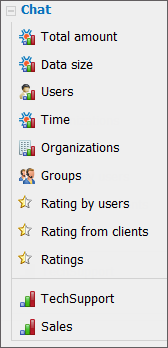
The upper box of the list contains several types of reports by all service groups. Reports by each service group are located below.
Total Amount
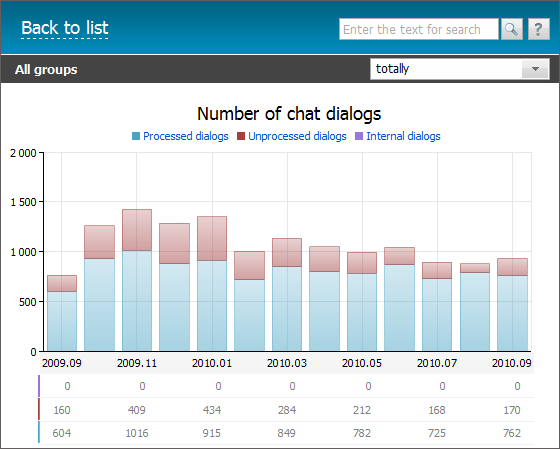
This report shows the number of dialogs by all service groups and the number of internal dialogs for a selected period. Blue bars indicate the amount of processed dialogs, red bars show the amount of unprocessed dialogs and purple bars show the amount of internal dialogs. When you hold the mouse cursor over a bar, a pop-up help containing the number of dialogs will appear.
The diagram can be rescaled by one of the bar types. To do it click with the left mouse button on a bar. In this case only the chosen type of bars will be shown in the diagram. To get back to the initial state press the "All series" button located in the legend of the diagram.
Data Size
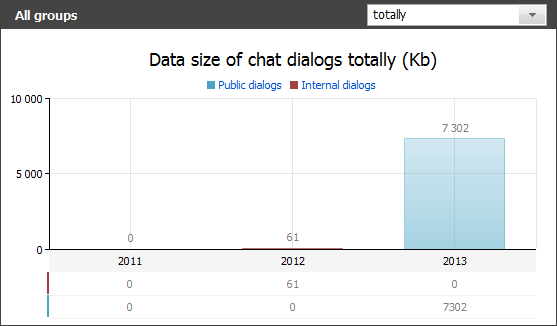
This report represents the statistics on the size of files transferred through dialogs. Blue bars show the size of files transferred through public chats, and red bars show the size of files transferred through internal dialogs.
Users
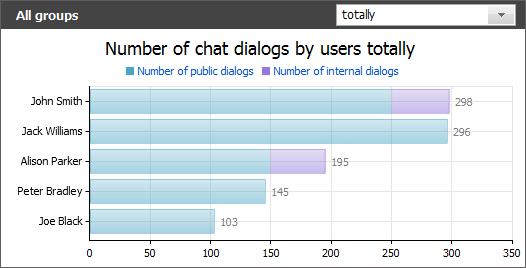
This reports represents the statistics by the number of dialogs the users participated in. Both external (public) and internal dialogs are counted here. When you hold the mouse cursor over a bar, a pop-up help containing the number of dialogs will appear.
Time
The "Time" report is intended for analysing the quality of servicing the clients contacted the company through the public component ("Online Assistant")of the module. It consists of two diagrams:
Summary Dialogs Amount by Days of Week
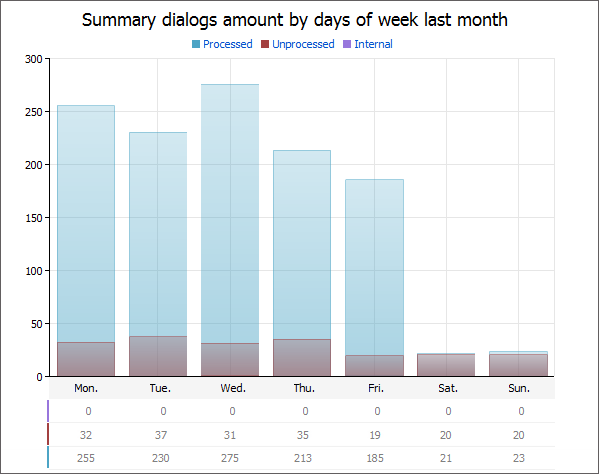
This diagram displays the statistics of the number of dialogs by the days of week. Unprocessed dialogs are displayed with the red bars, processed dialogs — with the blue bars and internal dialogs — with the purple bars. If you put a mouse cursor over a bar a pop-up help containing the number of dialogs will appear.
Summary Dialogs Amount by Hours
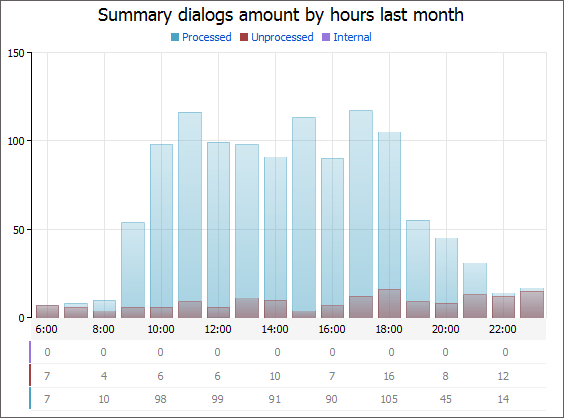
This diagram displays the statistics of number of dialogs by every hour of day. The red bars represent the number of unprocessed dialogs, the blue bars — processed dialogs and the purple bars — internal dialogs.
Organizations
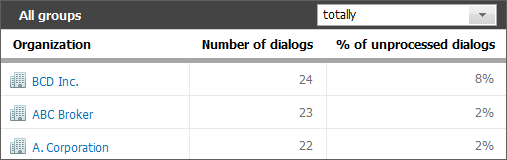
This report represents the statistics by the number of dialogs bound to different organizations. Also this report displays the percentage of unprocessed requests for dialogs received from organizations.
The left mouse button click on the organization name in the corresponding column shows the organization information in the "Organizations" module.
Groups
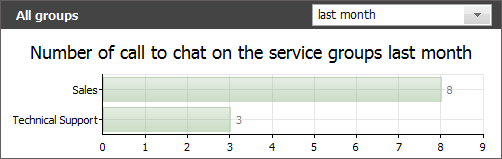
This report displays statistics by the number of chat dialogs in each service group for a selected time period.
Rating by Users
Users that contact your company through the public component of the "Chat" module can rate the dialogs with employees. This report displays the average rates for the selected period for each employee:
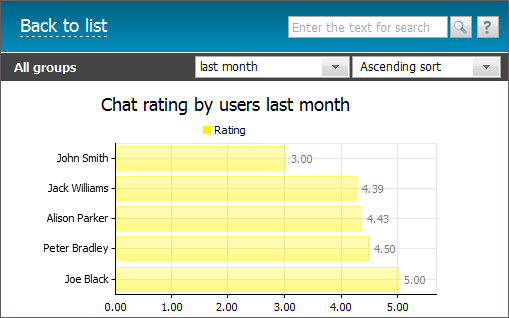
In the upper part of the report, you can select the ascending or descending sorting of rates.
Rating from Clients
This reports is also drawn on the basis of rates given to public dialogs. However, in this case, the rates are grouped by organizations that request consulting through the chat:
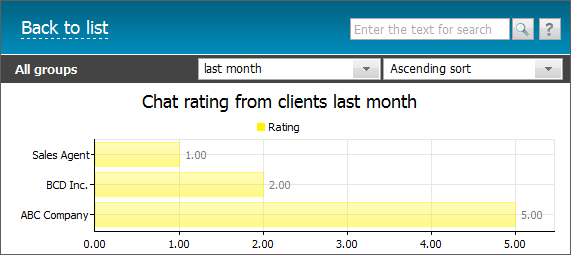
In the upper part of the report, you can select the ascending or descending sorting of rates.
Ratings
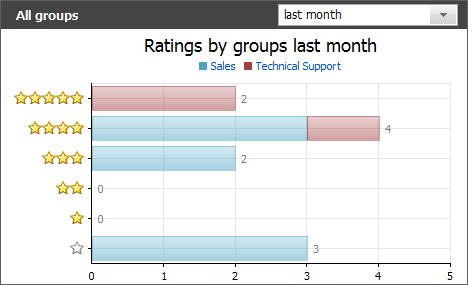
This report contains the statistics of how users rated chat dialogs. Distribution of rates is displayed for each group using bars of different colors.
Choosing Period
In some reports there is a possibility of choosing the time period the report should be formed for. You can choose a period from the pop-up list located in the upper-right part of the tab:
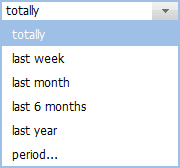
If the "period..." variant is chosen, the additional fields appear in the report title of a report, where one can choose a custom period for report generation:

A period can be specified either manually or using the interactive calendar, that is opened by pressing the  button. Once the beginning and ending dates are specified, one should press the
  button.
|