
List of Contacts
All the contacts registered in TeamWox are displayed in the form of a list.
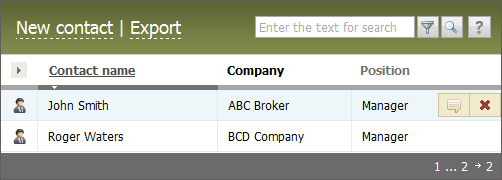
One page can contain up to 20 contact entries. If this number is exceeded, the line of switching between pages appears at the end of the page, as shown in the screenshot below. The current page number is shown on a white background. This line contains the page order numbers, the first and the last entry numbers, and the total amount of entries in the list.

For your convenience, the options of list sorting and of choosing columns to be displayed in the list are provided.
Functional Buttons
The upper part of the tab contains following buttons:
- New contact — go to the adding of a new contact;
- Export — export the list of contacts;
- Import — go to the import of contacts;
- Delete all — delete all contacts from the current filter. This button does not appear at the "All" filter.
Search by Filter
There is a possibility of temporary filtering the contacts without creating a permanent filter. To do it, you should type the necessary combination of characters in the search line and then press the  button. Unlike the common TeamWox search, the search during the filtration is performed by a substring, i.e., only the contacts should be listed, in whose filled fields the entered combination of characters is found.
List Sorting
You can sort your contact list by pressing with your mouse on a corresponding column name. You can sort the list by the "Name", "Position", "Department", "E-mail", "Website", "Created", "Modified" columns. The names of the columns suitable for sorting are gray and become underlined, if you put the cursor over them. The name of the current sorting column is always underlined.
Choice of Columns to Be Displayed
In order to choose the columns to be displayed, you should left-click on the arrow-like button, as shown below:
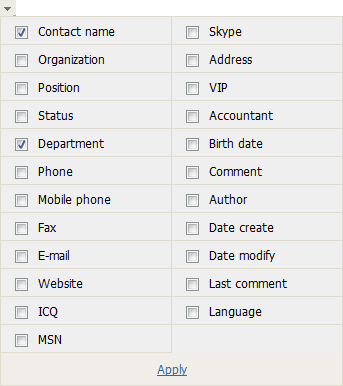
After the necessary fields have been checked in this window, you should press the "Apply" button located under the list of column names.
Deleting/Restoring
If you put the cursor over a contact's entry in the list,  appears at the end of entry. You can delete the contact using this button.
The deleted contacts are placed in the "Deleted" filter. They can only be restored by the administrator of the "Contacts" module, using the |
 button. If a contact is deleted from the "Deleted" filter, its recovery becomes impossible.
Writing Comments to History
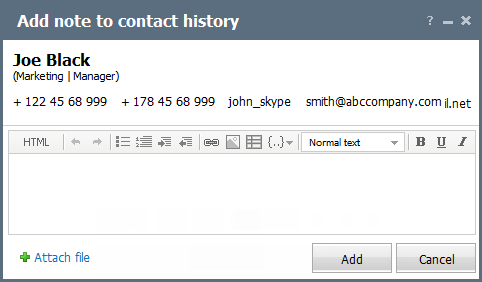
Using the  button that appears if you point the mouse cursor over a line, you can add a comment to the history of contact. The following window is opened as soon as this button is pressed:
Other Actions in the List
If you press with your mouse on the company name of a contact in the list, you will be passed to the window of viewing the organization's information of the "Organizations" module.
If you click on the e-mail address of a contact, you will be passed to the creation of a new mail window of the "E-Mail" module. The address you've clicked will be automatically placed in the "To" field.
If you hold the mouse cursor over the name of contacts, the pop-up help containing brief information about the contact will appear:
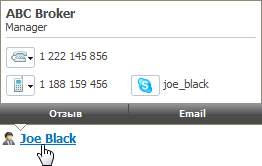
From this window you can make a call to this contact by pressing one of the corresponding buttons, or you can write a message at the address indicated in his/her contact details. If you press the "Note" button the window for adding notes to contact history will be opened.