
After you have installed the TeamWox groupware system, it is available for local use. To access TeamWox groupware system from the internet you will need to allocate a public static IP address. This is the permanent real IP address which is allocated by your internet provider. If such a public static IP address is available, your server will be accessible from any computer or mobile devices connected to the internet without any additional configuration.
If your company doesn't have its own public IP address, and your are planning remote working with TeamWox collaboration software from the internet, you'll have to contact your internet provider requesting a public static IP address.
However, if a gateway (e.g. ADSL modem) is used to connect to the Internet, it will need additionally set up. In this case, to provide the operation of TeamWox you should set up Port Forwarding. In this article we'll consider a few most popular gateways and give instructions on their setup.
In this article we'll consider:
- setting up the remote access in various placement of the server;
- the Internet connection diagram and instructions on their setup a few most popular gateways:
- ASUS RT-N13 Wireless N Router
- Netgear WNR2000
- ZyXEL P-660RU EE
- D-Link DSL- 500G
- D-Link DSL-500T
- ADSL-модемы Acorp LAN120, 420, 422 и Asus-AAM6010EV (первая версия)
- Asus-AAM6010EV/Z2
Connection Troubleshooting
Before proceeding to describe the configuration of remote access, perform diagnostics TeamWox connect to the Internet. To do this, log into the system as a user with administrator privileges. Then go to the tab "Manage" and select "Connection":
In order to examine the connection of TeamWox to the Internet, go to the Administration module and select the Connection section:
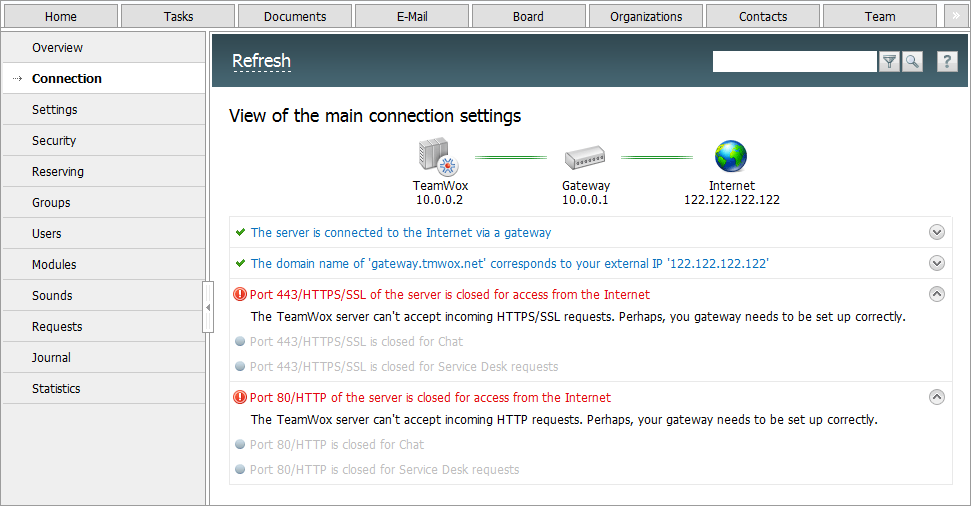
If requests from the Internet aren't passed to the TeamWox server, details about the corresponding errors will be shown on this page (e.g. closed ports 80 and 443). If there are no such errors, TeamWox can successfully accept incoming requests from the Internet, and you don't need to read this article.
Setting up the remote access
So, you have a public IP address. In this case, setting up the remote access will depend on the location of the computer with installed TeamWox. Most likely you have one of the following cases, when the computer is located:
- at your hosting provider with an allocated public IP address;
- in a local corporate network behind firewall with an allocated public static IP address;
- in a local corporate network behind firewall (Internet access point) with an allocated internal IP address like 192.168.х.х.
Let's consider setting up of the remote access to the TeamWox Groupware server from the internet for each above mentioned case separately. Suppose our TeamWox Groupware has the following installation parameters:
| Domain name of the TeamWox server: | team.yourcompany.com |
| Full URL address of the TeamWox server: | https://team.yourcompany.com |
| Public static IP address: | 205.134.70.31 |
| Internal local IP address of the TeamWox server: | 192.168.0.138 |
The computer where the TeamWox Groupware server is installed is located at the hosting provider
The TeamWox groupware server is installed on a computer with the allocated IP address 205.134.70.31. In this case a special DNS entry should be added in DNS servers of the provider who maintain the domain yourcompany.com. This special DNS entry will assign to your domain a static IP address of the TeamWox Groupware server in the internet (external IP address), e.g.:
Not all hosting providers provide direct access to their DNS servers. So, probably you will need to contact the support team of your provider requesting to add the corresponding record on their DNS server.
The computer where the TeamWox Groupware server is installed is located in the local network behind firewall with an allocated public IP address
If there is no proper DNS server in your corporate network, you will need to perform the actions described above, i.e. you'll need to add a special DNS entry in the DNS server of your internet provider.
If there is a DNS server in your company, the corresponding entry should be added to it.
The computer where the TeamWox server is installed is located in the local network behind firewall with an internal public IP address like 192.168.0.138
In this case you will need to perform the following actions:
1) Either in your provider's DNS server or in your own one, add a special DNS entry like this:
2) On the firewall add mapping or redirection of external requests of the domain name team.yourcompany.com to the real internal local IP address of the computer where the TeamWox server is installed (192.168.0.138).
In
other words, when you enter the url address of your TeamWox server
(https://team.yourcompany.com) in the address line of your web browser
from a remote (home) computer, first you access the DNS server of your
provide, which returns the IP address (205.134.70.31), at which
connection with the TeamWox server is performed.
That is, for the internet, your TeamWox server with the domain name team.yourcompany.com is located at the public static IP address of your corporate network (205.134.70.31), but global DNS servers don't know that actually the server is located in the local network and has its own internal IP address (192.168.0.138).
Use port mapping for redirecting incoming requests at port 443 (HTTPS) to a necessary computer. For this purpose, the below entry should be added to the gateway:
Here 192.168.0.138:443 is the address of the server where TeamWox Groupware is installed.
3) For your employees in the office to be able to enter TeamWox collaboration software at https://team.yourcompany.com directly from a local network addressing the internal IP address of the server without having to use complicated routes via internet, public addresses or proxy servers, the following entry should also be added at firewall or inner DNS server:
TeamWox Connection Diagram
As a rule, a local network has at least one access point to connect to the Internet and to bind network devices:
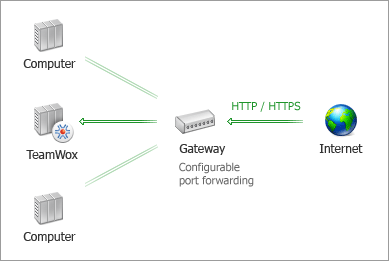
In order to redirect incoming HTTP/HTTPS requests to the TeamWox server, the gateway should provide configurable port forwarding. If this option is not supported, TeamWox connected to the access point will not be able to accept incoming requests from the Internet.
Attention! Most of old versions of ADSL modems do not provide configurable port forwarding.
The most popular type of port forwarding supported by all routers is a static one. To set it up, specify source ports, address in the internal network, and destination ports on the router. To do this, you need to know the internal IP address of the computer where the TeamWox server is installed.
If a DHCP server that allocates IP addresses is installed in your local network, a permanent IP address should be assigned to the computer where the TeamWox server is installed. Otherwise, port forwarding won't work if the computer IP address changes.
If a Firewall is installed on your gateway, ports 80 and 443 should be allowed in its settings. Example of such a setup for the modem ZyXEL P-660H/HW:
.png "Setup of ZyXEL P-660H/HW")
Setup of Routers
Let's consider some devices used as gateways and supporting routing with port forwarding setup. For each of the devices parameters can be set up through a web interface. All you need to do is open any web browser and enter the IP address of the setting page in the address bar.
ASUS RT-N13 Wireless N Router
Default data for accessing the web-interface of the device parameters:
- IP address of the setup page: http://192.168.1.1
- User: admin
- Password: admin
This device is a multi-functional access point with the Wi-Fi connection support. If connecting via it with its default settings, access to the TeamWox server from the Internet will be closed. In order to open external access, you should set up the Virtual Server implemented via the NAT server of the access point:
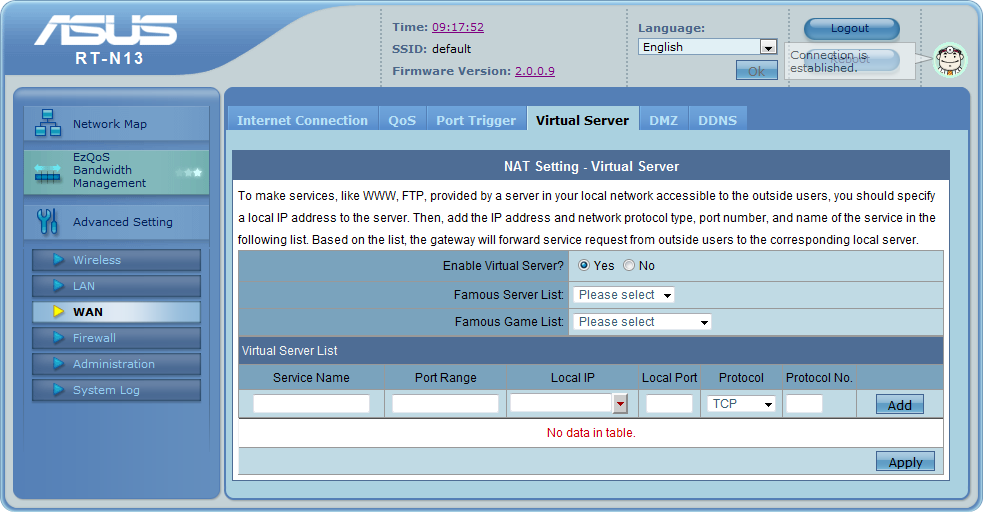
Add 2 rules for port forwarding to ports 80 and 443. Specify the IP address of the computer where the TeamWox server is installed should be specified for the local IP address:
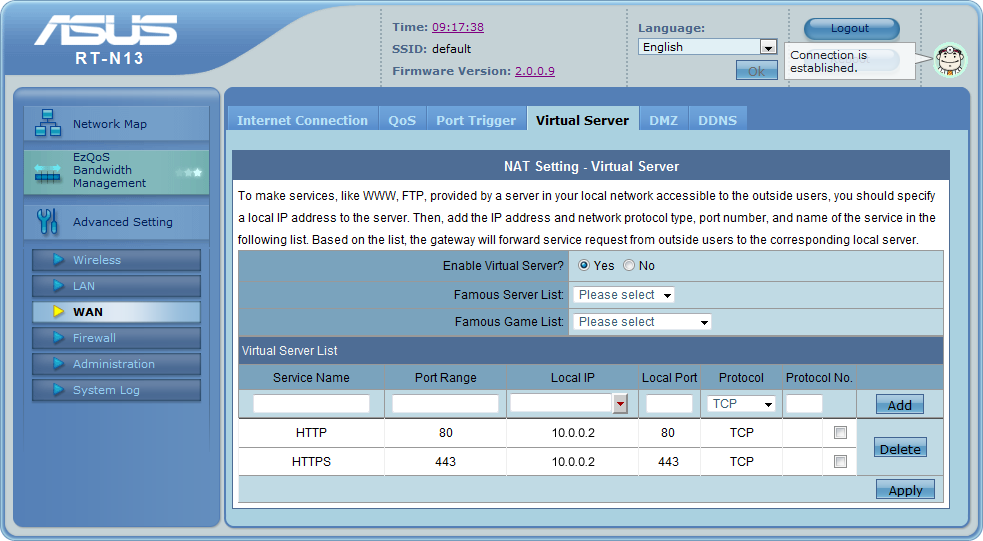
After these rules have been added and applied, TeamWox can be accessed from the external Internet network.
Netgear WNR2000
Default data for accessing the web-interface of the device parameters:
- IP address of the setup page: http://10.0.0.1
- User: admin
- Password: password
As well as the previous device, this is also a multi-functional access point. Port mapping is set up in Advanced -> Port Forwarding:
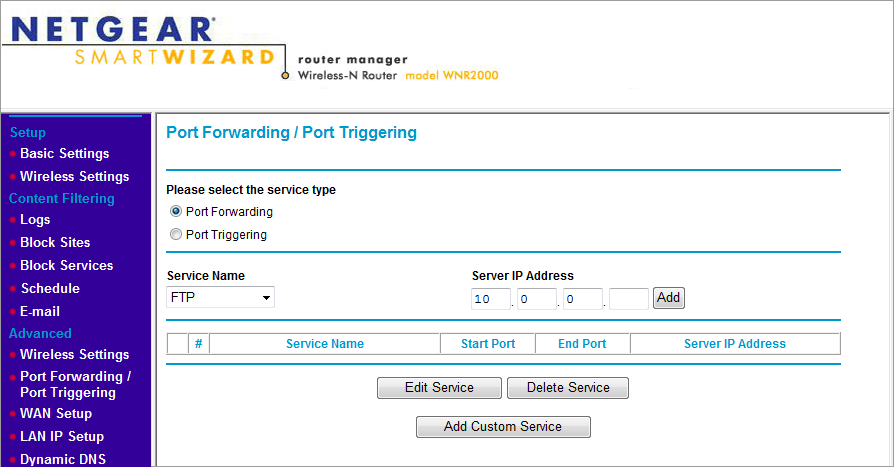
Add 2 rules for port forwarding to ports 80 and 443. Specify the IP address of the computer where the TeamWox server is installed should be specified for the local IP address:
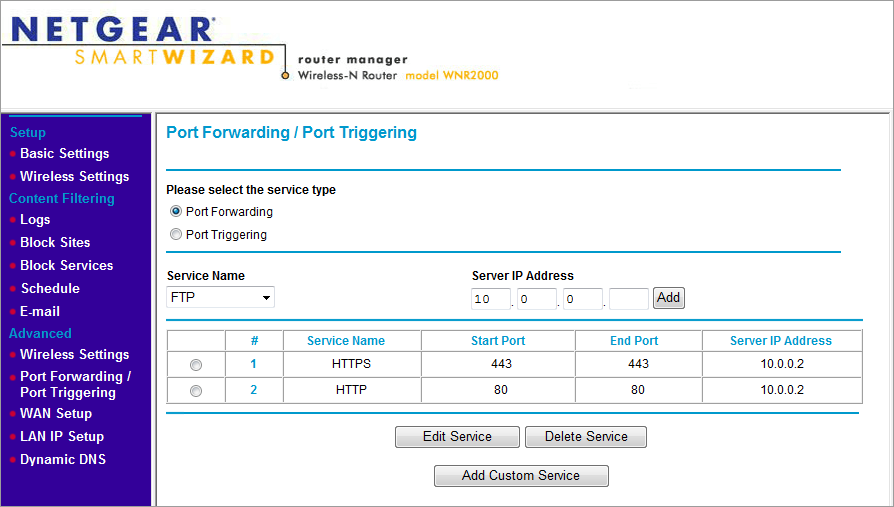
After these rules have been added and applied, TeamWox can be accessed from the external Internet network.
ZyXEL P-660RU EE
Default data for accessing the web-interface of the device parameters:
- IP address of the setup page: http://192.168.1.1
- User: admin
- Password: 1234
This is a ADSL2+ modem with USB and Ethernet ports. To set up port forwarding go to Advanced Setup -> NAT. Select the "SUA Only" mode and then Apply. Then press Edit Details to go to editing port forwarding:
.png "Setup of ZyXEL P-660RU EE")
After you have added two rules for ports 80 and 443 press Save:
.png "Setup of ZyXEL P-660RU EE")
D-Link DSL- 500G
Default data for accessing the web-interface of the device parameters:
- IP address of the setup page: http://192.168.1.1
- User: admin
- Password: admin
This is a ADSL modem with Ethernet connection. Go to Services -> NAT. In NAT options select "NAT rule entry" and delete the default rule. Then press Add to add 2 rules for ports 80 and 443:
.png "Setup of D-Link DSL- 500G")
Then add the main rule for the normal operation of NAT. The Rule ID must be higher than that of the above two rules:
.png "D-Link DSL- 500G")
D-Link DSL-500T
Default data for accessing the web-interface of the device parameters:
- IP address of the setup page: http://192.168.1.1
- User: admin
- Password: admin
This is a ADSL modem with Ethernet connection. To set up port forwarding, first add the IP address of the computer where the TeamWox server is installed into the list of LAN clients of the modem: Advanced -> LAN Clients. Εnter the IP address and press Add:
.png "Setup of D-Link DSL-500T")
Now go to Advanced -> Port Forwarding:
- Select the set up connection in the Connection field;
- Select the IP address set in the previous point in the LAN IP field;
- Select the User category, add 2 rules for ports 80 and 443 and press Apply;
- Save the setting via Tools -> System Commands -> Save All.
.png "Setup of D-Link DSL-500T")
Note
This instruction can be used for setting up the following ADSL modems: Acorp LAN120, 420, 422 и Asus-AAM6010EV (first version).
For more advanced devices of D-Link setup is the same, except for the following: Advanced -> Virtual Server is used instead of Advanced -> Port Forwarding.
Asus-AAM6010EV/Z2
Default data for accessing the web-interface of the device parameters:
- IP address of the setup page: http://192.168.1.1
- User: admin
- Password: admin
This is a ADSL2/2+ modem with USB and Ethernet ports. To set up port forwarding go to Advanced Setup -> NAT. Fill in the fields as follows and press the Virtual Server link:
.png "Setup of Asus-AAM6010EV")
Add two rules for ports 80 and 443 - fill in the fields like this:
- Rule Index – 1,2
- Application – HTTP и HTTPS
- Protocol – TCP
- Start Port Number, End Port Number – 80 for HTTP and 443 for HTTPS
- Local IP address – IP address of the computer where TeamWox is installed
As a result we get 2 rules:
.png "Setup of Asus-AAM6010EV")
Note
This instruction can be used for setting up ADSL modems of HUAWEI. Menus of older versions of HUAWEI used for adding NAT rules: Other Setting -> NAT (for HUAWEI SmartAX MT800), Basic -> NAT -> Redirect (for HUAWEI SmartAX MT880) and Other Setting -> NAT-> Port Mapping Set (for HUAWEI SmartAX MT880 v2).
Conclusion
These routers can be used as gateways for connecting to the Internet from the local dedicated network where the TeamWox server is installed. If for some reasons the above settings cannot be applied to your router , visit http://www.portforward.com to find instructions on its setup.
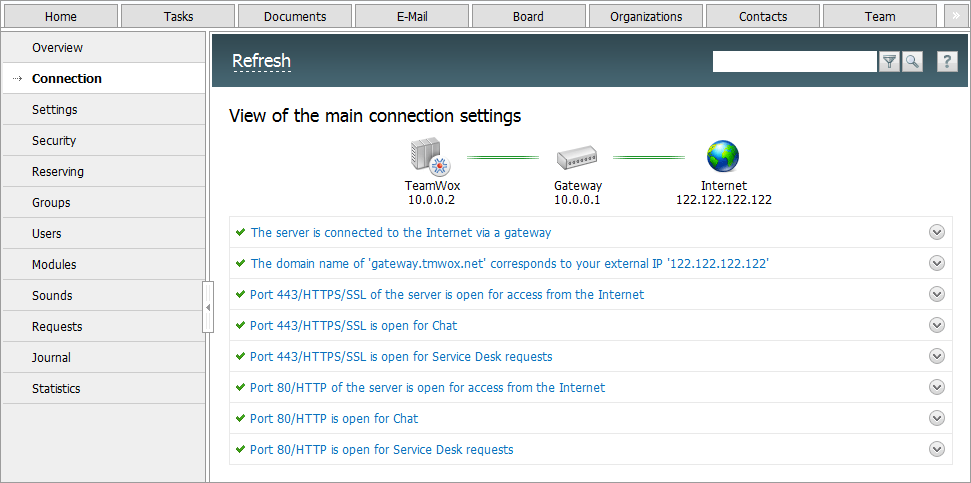
After you have set up your router, check the connection of the TeamWox groupware system to the Internet: press Update in the menu of the Connections page. If ports 80 and 443 can be accessed from the Internet, the corresponding points will show it:
Related articles:
- TeamWox Groupware Setup Guide and Brief Training Course
- FAQ
- TeamWox Collaboration Software: Server Installation Guide
- A Legal SSL Certificate for TeamWox Collaboration System
- How to speed up TeamWox Groupware by storing components on different drives
- How to Install TeamWox Business Communicator on your PC
- Migration from OTRS Ticket System to the TeamWox Business Management Software
- Technical Customer Support with TeamViewer
- TeamWox Help
- Terms of delivery of the TeamWox Collaboration Software
- Reviews and Feedback
2010.03.10