
Introduction
Displaying data of its own module — perhaps this is the first thing, that novice developer of modules for TeamWox groupware wants to make. In this article you will learn how to add a new page (data representation) into module.
To begin, we will briefly consider how data, their representation and user cations interact with each other. Then we'll create a new page class and add it into module project. Next we'll create a new rule requests redirecting (routing), which will link new page with module. Then we will call a new page via main menu of module. At the end of the article we will briefly consider the basic functionality of templates - a powerful tool of data output on pages.
TeamWox Module Architecture
Model View Controller (MVC) — is a popular design pattern (software architecture), in which application data model (Model), user interface (View) and controlling logics (Controller) are separated into three components. Note, that modification of one component has minimal impact on other components.
TeamWox Module Architecture - is a modified version of MVC. In TeamWox groupware the MVC terms are called slightly different, but the whole point does not change.
| MVC Architecture Term | TeamWox Term |
|---|---|
| Model | Manager |
| View | Page |
| Controller | Module |
Consider the architecture of module and how its main structural units interact with each other:
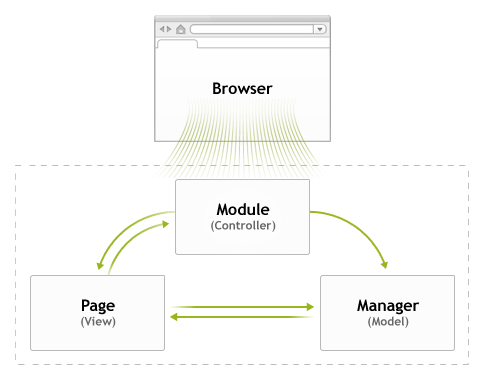
Interaction Between the Module (Controller), Manager (Model) and Pages (View)
- HTTP-request is received by Module, that selects an appropriate Page to process this request.
- Page processes request and calls to Manager for data.
- Manager gives processed data back to Module, that provides an interface to access this data through Pages. Pages send processed data as HTTP-response via Module to display them in Browser window.
The Structure of Folders and Files of the HelloWorld Module
Consider the practical implementation of the above concept. From the TeamWox SDK: How to Add a Ready-Made Module to TeamWox article you know how you can easy compile the Hello World module. Let's continue working with this module and take a closer look at the structure of its folders and files.
The Hello World module is located in the <TeamWox SDK installation folder>\Modules\HelloWorld folder. The root folder contains the source codes of the module. The \Managers sub-folder contains the source codes of manager, and the \Pages sub-folder - source codes of all module pages.
Adding a New Page to Visual Studio Project
Let's add into project a page that will display simple text. Open the HelloWorld project, which we've worked with in the previous article. Add the СPageNumberThree class responsible for displaying a new Page 3 (there are already two pages in the module, let add the third). Relative link to the new page will be /helloworld/number_three.
Page class consists of a header file (.h) with class description and the source code file (.cpp) with its implementation. According the the project structure, pages should be in the \Pages subfolder of the root HelloWorld\ folder of our module.
Open the
HelloWorld.vcprojproject, open theHeader Files\Pagesfolder in it, right-click and chooseAdd
New Item.Select
Header File (.h)template and enter the namePageNumberThree. In theLocationfield, specify the<TeamWox SDK installation folder>\Modules\HelloWorld\Pages\folder (the file will be located in this folder) and clickAdd.Similarly, but in the
Source Files\Pagesfolder, create a source file (.cpp) page with the same namePageNumberThree.
Adding a New Page Class
Let's fill our files with source code of class. Here we will use the source code of other module pages as a template.
1. In the PageNumberThree.h file declare the CPageNumberThree class for the new page. Using the header file of the first page PageNumberOne.h as a template, edit it as follows (changes are highlighted with yellow):
//+------------------------------------------------------------------+
//|                                                          TeamWox |
//|                 Copyright © 2006-2008, MetaQuotes Software Corp. |
//|                                        https://www.metaquotes.net |
//+------------------------------------------------------------------+
#pragma once

//+------------------------------------------------------------------+
//| Page 3                                                           |
//+------------------------------------------------------------------+
class CPageNumberThree : public CPage
  {
private:
   IServer          *m_server;

public:
                     CPageNumberThree();
                    ~CPageNumberThree();
   //--- handler
   TWRESULT          Process(const Context *context,IServer *server,const wchar_t *path);
   //--- functions of displaying
   bool              Tag(const Context *context,const TagInfo *tag);
  };
//+------------------------------------------------------------------+
2. Implement this class in the PageNumberThree.cpp file. As with the header file, for speed sake copy the contents of the source code file of the first page PageNumberOne.cpp into the new PageNumberThree.cpp file and edit it as follows (changes are highlighted with yellow, unnecessary pieces of code are removed):
//+------------------------------------------------------------------+
//|                                                          TeamWox |
//|                 Copyright © 2006-2008, MetaQuotes Software Corp. |
//|                                        https://www.metaquotes.net |
//+------------------------------------------------------------------+
#include "StdAfx.h"
#include "PageNumberThree.h"

//+------------------------------------------------------------------+
//| Constructor                                                      |
//+------------------------------------------------------------------+
CPageNumberThree::CPageNumberThree() : m_server(NULL)
  {
  }
//+------------------------------------------------------------------+
//| Destructor                                                       |
//+------------------------------------------------------------------+
CPageNumberThree::~CPageNumberThree()
  {
   m_server=NULL;
  }
//+------------------------------------------------------------------+
//| Process request                                                  |
//+------------------------------------------------------------------+
TWRESULT CPageNumberThree::Process(const Context *context,IServer *server,const wchar_t *path)
  {
//--- checks
   if(context==NULL || path==NULL) ReturnError(RES_E_INVALID_ARGS);
   if(context->request==NULL)      ReturnError(RES_E_INVALID_CONTEXT);
//--- get server
   if(server==NULL)                ReturnError(RES_E_FAIL);
//---
   m_server=server;
//--- display page
   context->response->Write(L"Simple Text");
   return(RES_S_OK);

  }
//+------------------------------------------------------------------+
//| Process token                                                    |
//+------------------------------------------------------------------+
bool CPageNumberThree::Tag(const Context *context,const TagInfo *tag)
  {
//--- checks
   if(context==NULL || tag==NULL || m_server==NULL)  return(false);
   if(context->request==NULL || context->user==NULL) return(false);
//---
   return(false);
  }
//+------------------------------------------------------------------+
The page is ready, but it doesn't connected with the module yet.
New Rule of Requests Redirecting (Routing)
To access the new page, we will need to add a new rule requests redirecting. In MVC architecture requests are received by Controller. In TeamWox this is Module. In the corresponding method of the module add the rule, that redirects request /helloworld/number_three to process the CPageNumberThree page.
1. Open the source code file HelloWorldModule.cpp of module and make the following changes (highlighted with yellow):
//+------------------------------------------------------------------+
//| Routing by URL                                                   |
//+------------------------------------------------------------------+
TWRESULT CHelloWorldModule::ProcessPage(const Context *context, IServer *server, const wchar_t *path)
  {
   if(context==NULL || path==NULL) ReturnError(RES_E_INVALID_ARGS);
//---
   if(PathCompare(L"index",path))         return(CPageIndex().Process(context,m_server,path));
   if(PathCompare(L"number_one",path))    return(CPageNumberOne().Process(context,m_server,path));
   if(PathCompare(L"number_two",path))    return(CPageNumberTwo().Process(context,m_server,path,&m_manager));
   if(PathCompare(L"number_three",path))  return(CPageNumberThree().Process(context,m_server,path));
//--- by default
   return(CPageIndex().Process(context,m_server,path));
2. Add the CPageNumberThree class definition into preprocessor commands:
#include "stdafx.h"
#include "HelloWorldModule.h"
#include "Pages\PageIndex.h"
#include "Pages\PageNumberOne.h"
#include "Pages\PageNumberTwo.h"
#include "Pages\PageNumberThree.h"
Check New Page Display
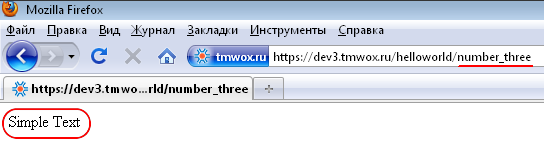
Now we need to check that created page is available via HTTP request. Make sure that your development environment is properly configured .
1. Compile the project, start TeamWox server and open Hello World module homepage.
2. In the browser address bar type https://<your teamwox site>/helloworld/number_three.
Adding a Link to the Page in the Module Navigation Menu
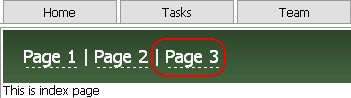
Of course, it's not effective to request pages in such way, so we'll add a link to Page 3 into navigation menu of the Hello World module.
1. In text editor (like Notepad) open the main page template — the <TeamWox installation folder>\modules\helloworld\templates\index.tpl file and add the link to Page 3.
//+----------------------------------------------+
//| Page Header                                  |
//+----------------------------------------------+
var header = TeamWox.Control("PageHeader","#41633C")
   .Help("/helloworld/index")
   .Search(65536)
   .Command("<lng:MENU_HELLOWORLD_NUMBER1>","/helloworld/number_one",  "<lng:MENU_HELLOWORLD_NUMBER1>")
   .Command("<lng:MENU_HELLOWORLD_NUMBER2>","/helloworld/number_two",  "<lng:MENU_HELLOWORLD_NUMBER2>");
   .Command("<lng:MENU_HELLOWORLD_NUMBER3>","/helloworld/number_three","<lng:MENU_HELLOWORLD_NUMBER3>");
2. In the browser window, open the main page of the Hello World module. To the right of two existing page links there should be the new one.

3. Go to the new page. Make sure that the open frame displays the 'Simple Text'.

4. Return to the module home page using browser navigation commands.
Add Translations
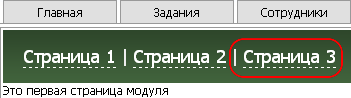
Text of the helloworld/number_three links yet matches the MENU_HELLOWORLD_NUMBER3 key, since TeamWox server can't find the appropriate translation for this key. Let's add it into module language file.
1. In the <TeamWox installation folder>\modules\helloworld\ folder open the helloworld.lng file in any text editor, add the MENU_HELLOWORLD_NUMBER3 key and translations for all supported languages in the module.
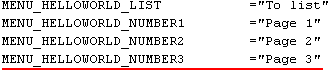
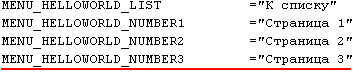
2. Save your changes and restart TeamWox server. Now the name of the new page link is taken from the helloworld.lng language file. You can also check the translation into Russian by changing the language setting in your profile.
Templates
In the example above, the text displayed on a page was taken directly from the source code. With this approach, any change in the view (the way of data representation, formatting, etc.) will require a full recompilation of the module.
To ease the changing of page layout, it should be separated into template. In this approach, the source code of a page will indicate which data must be submitted to pages, and the method of their representation and output order will be determined in the template.
TeamWox page templates — are special text files that are used for data output in browser window. The purpose of templates - is to separate the code that displays specific data from their formatting. Template is a kind of proxy between the page data and the way they are displayed in browser.
Displaying Page Using a Template
So, let's change our page so that the text on it will be displayed using a template.
1. In the <папка_установки_TeamWox>\modules\helloworld\templates\ folder create a text file named number3.tpl. This file will be a template to display Page 3.
2. In any text editor add a simple HTML code into this template.
<html>
<body>
Simple Text
</body>
</html>
3. Add the number3.tpl template to the HelloWorld.vcproj project. To do this, in Visual Studio expand Resource Files\templates and from the context menu select Add Existing Item.
4. Next, open the <TeamWox installation folder>\modules\helloworld\templates\ folder, select the newly created number3.tpl file and click Add. Now you can change the templates directly in Visual Studio.
Let's redirect the page data output to the number3.tpl template. To do this, open the PageNumberThree.cpp file and change the following block of code (changes are highlighted with yellow):
//+------------------------------------------------------------------+
//| Processing Request                                               |
//+------------------------------------------------------------------+
TWRESULT CPageReference::Process(const Context *context,IServer *server,const wchar_t *path)
  {
//--- checks
   if(context==NULL || path==NULL) ReturnError(RES_E_INVALID_ARGS);
   if(context->request==NULL)      ReturnError(RES_E_INVALID_CONTEXT);
//--- get server
   if(server==NULL)                ReturnError(RES_E_FAIL);
//---
   m_server=server;
//--- display page
   return(server->PageProcess(context, L"templates\\number3.tpl", this, TW_PAGEPROCESS_NOCACHE));
  }
6. Compile the module and start TeamWox server. As a result, Page 3 should display the same 'Simple Text', but now it is displayed using the template.
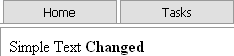
7. An important advantage of templates is that their change (with certain restrictions) do not require recompilation of module. In order to illustrate this, open the number3.tpl file in any text editor and change the 'Simple Text' - for example to 'Simple Text Changed' (yes, you can use HTML tags to format your texts!). After this, simply refresh your page in browser.
Conclusion
So, you know how does TeamWox module architecture works, how to add new pages in modules. We've also got acquainted with a powerful tool for data output - templates. Further on we plan to look closer at templates.
- How to Add a Ready-made Module to TeamWox
- How to Add Page into TeamWox Module
- Building User Interface
- Interaction with DBMS
- Creating Custom Reports
- TeamWox File Storage - Part 1
- TeamWox File Storage - Part 2
- Setting Up Custom Modules Environment - Part 1
- Setting Up Custom Modules Environment - Part 2
- Search and Filtering - Part 1
- Search and Filtering - Part 2
- Setting Up Online Assistant On Your Site
- How To Create Additional Language Package For TeamWox
2010.08.26