
View Topic
To start viewing a topic, you should click on its subject. The window shown below will appear:
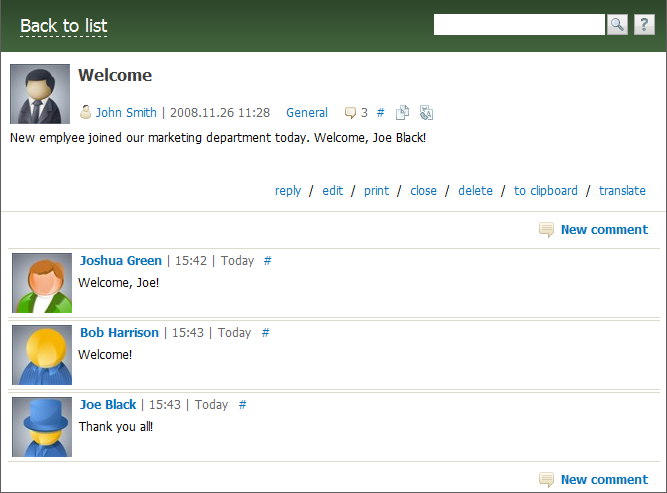
Topic details appear below its name: author, creation date, and category.
Actions with a topic
When you point mouse cursor over the name of the author, a popup window with the user's brief information appears, and when you click on his or her name, profile will open.
From an open topic you can move to the category to which it relates. To do this, click on the category name below the title.
The icon  and figures next to it indicate the number of comments in the topic.
Sign # is shown to the right of the number of comments in the topic and the date of each comment . It is a constant link to a topic or a specific comment in it. You can copy this link via the context menu, and then paste into your messages.
Icons  and
and  are available next to comments. The first button copies the topic title and content to clipboard, the second button translates the text into other languages.
If you are the author of the topic or have administrator rights, then when you move the mouse over the area of the first post of the topic, buttons with the possible actions appear:
- When you click on , you move to topic creation/editing window, which is described in details in the "New Topic" section.
- Button opens a topic with comments in a printable form. Page is printed in by your browser options.
- To stop topic discussion click . After that, users cannot post comments in it. Next to the topic subject icon
 appears, and the button is replaced with , by clicking on which you can restore a topic.
 - You can delete the topic by clicking . This will open a window asking "Delete the topic?". To confirm the deletion click "OK".
- Click copies the topic subject and contents to clipboard.
- Button is used for translating topic text or comment into other languages.
If there are more than 25 comments in the topic, a line for switching between pages will appear under the first message of the topic and under the last comment on the page. You can move up and down on the page using the scroll bar located in the right part of the window, or using the scroll wheel of your mouse.
In order to return to the list of topics, press the "Back to list" button located in the upper part of the tab.
Adding Comments
If you want to add a comment, you should enter the necessary topic and press  . This button is located in two places of the window: under the first message of the topic and under the last comment on the page. As soon as you press it, the window of the message editor will appear. Once having written the text of your comment, you should press the "Add" button to save your comment in the topic. If you press "Cancel", the message editor window will be closed without saving your comment.
Replying to a Comment
If you want to reply to a comment, you should press that appears to the right of the comment author's name, if you point your mouse cursor over it. If you press this button, the window of the message editor will appear. The only difference from the above case is the presence of an automatically prepared quotation of the commented message in the message editor window:
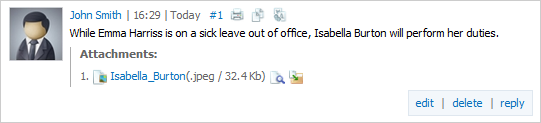
If you move your cursor to your comment, the additional buttons, and , will appear. They are used for editing and deleting your comments, respectively.
No matter how long the list of comments or the topic text is, the page header always contains the following details:
|

 and others.
Manipulations with Attachments
If a board topic contains attached files, you can copy them to the "Documents" module right from the topic-viewing mode by pressing the  button that appears to the right of the attached file name when you point the mouse cursor over it. This function is available if you have access to the "Documents" module.