
- Welcome
- Home
- Tasks
- Documents
- Add Document
- Attachments
- Create Document
- Create Folder
- Delete/Restore
- Edit Folder/Document
- Filters
- Information
- List of Documents
- Permissions
- Reports
- Setting Up WebDAV
- Documents widget
- Service Desk
- Chat
- Organizations
- Contacts
- Board
- Team
- Products
- Accounting
- E-Bank
- Search
- Calendar
- Telephony
- Administration
- Projects
Delete/Restore
The TeamWox system has a feature of protection of files/folders from deletion. When deleting, all of them are preliminary moved to the "Trash".
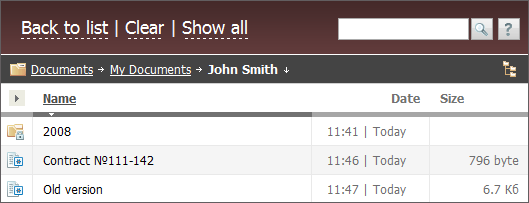
Like in all the filters, when switching to the trash, one can see only the files and folders that are located in a currently selected folder. To view all the documents in the trash, press the "Show all" button located in the upper part of the tab.
Deleted documents are stored in the trash for 30 days, then they are automatically removed from the system. |
Deleting Folders
As already mentioned above, when deleting files from a folder they are moved to the trash. At that physically they continue staying in the folder they has been deleted from. Also a user may be not able to see some sub-folders due to the lack of corresponding access rights. User cannot delete a folder with such files and folder. To inform a user about the presence/absence of hidden files/folders, the corresponding messages are displayed when viewing a folder:
 Folder contains files or sub-folders that you are not able to see or they were moved to trash;
- Folder doesn't contain any files or sub-folders.
Complete Deletion
If you need to completely remove a document from the system, press the  button that appears if you point the mouse cursor over it. To completely remove all the documents and folders from the trash, one should press the "Clear" button located in the upper part of the tab.
Restoring
To restore a file or folder from the trash, press the  button that appears when putting the mouse cursor over the corresponding line. Elements are restored to the same folder they were removed from.