
- Welcome
- Home
- Tasks
- Documents
- Add Document
- Attachments
- Create Document
- Create Folder
- Delete/Restore
- Edit Folder/Document
- Filters
- Information
- List of Documents
- Permissions
- Reports
- Setting Up WebDAV
- Documents widget
- Service Desk
- Chat
- Organizations
- Contacts
- Board
- Team
- Products
- Accounting
- E-Bank
- Search
- Calendar
- Telephony
- Administration
- Projects
Setting Up WebDAV
The files storage of the "Documents" module can be connected in the form of a network folder at your PC due to the support of WebDAV protocol in the TeamWox system. This technology allows working with files at the server in the way you would work with them at your PC. You can copy, modify and save them. At that the versions of files will be kept. Each version can be found at the corresponding tab when viewing the information about a document.
It is impossible to use connection via WevDav if a self-signed certificate or a certificate distributed by a non-trusted certification authority is installed for the TeamWox system. The certificate distributed by the developers of the system is installed on default. It doesn't allow to connect the documents storage as a network drive. The following solutions are possible in this situation:
|
Connection in the "Microsoft Windows Vista" Operating System
You should choose the "Map network drive..." entry in the context menu of "My computer":
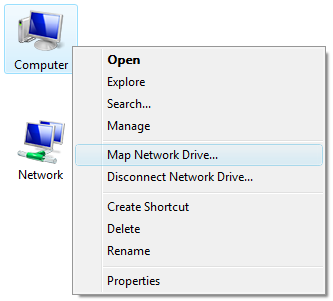
The window of network drive connection will be opened as soon as you do it:
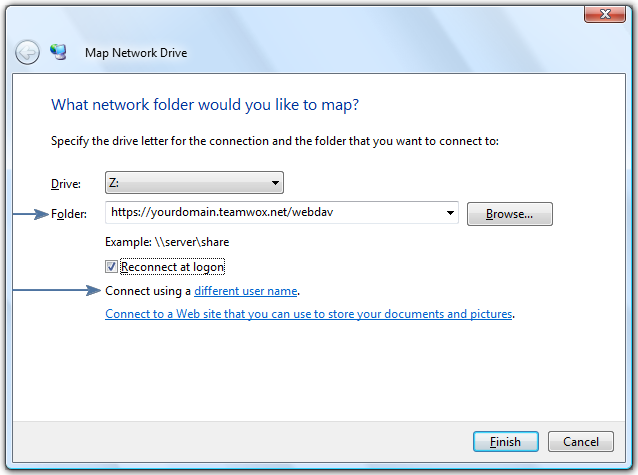
In the "Folder" field you should specify the address of your TeamWox server/webdav, for example: "https://yourdomain.teamwox.net/webdav".
It is obligatory to specify "https" in the address because the working is performed only through the secure protocol. |
Then you should press at the "different user name" (see screenshot above) link and in the appeared window specify the login and password, which you use to enter the TeamWox system:
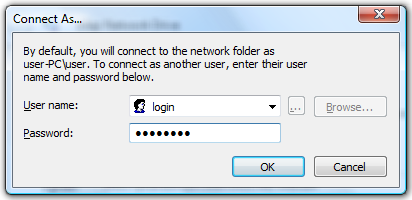
For authorization you can only use the password in the TeamWox system. Connection using password in Active Directory is impossible since the TeamWox system doesn't store it anywhere and it cannot be checked. |
Then you should press the "OK" and "Finish" buttons. Once you do it the network drive will appear in the window of "My computer", it will contain all the folders and files, to which you have the access.
To work with WebDAV under Microsoft Windows Vista systems you must have the Webfldrs-KB907306-ENG patch installed. It can be found on www.microsoft.com website. "ENG" ending in the patch name corresponds to the English language of operating system, for the installation in systems with different languages you should download the corresponding patch. |
Connection in the "Microsoft Windows Server 2008"
The scheme of connection of a network drive in this operating system is the same as in the "MS Windows Vista". However, here you need to install the additional component "Desktop Experience":
- In the "Start" menu select "Administrative Tools", then "Server Manager";
- Open "Components" section and click "Add components", a wizard will open. Select "Desktop Experience" and install it by clicking "Next".
Connection in the "Microsoft Windows XP" Operating System
Choose the "Map network drive..." entry in the context menu of "My Computer" or "My Network Places":
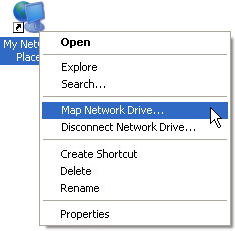
The window of network drive connection will be opened as soon as you do it:
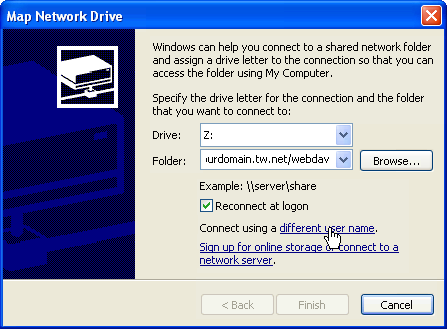
In the "Drive" field specify a letter, the network drive will be labeled with. In the "Folder" field you should specify the address of your TeamWox server/webdav, for example: "http://yourdomain.teamwox.net/webdav".
As distinct from the "Microsoft Windows Vista", "http" protocol is used here, not "https". |
Then click the "different user name" link and in the appeared window specify the login and password, which you use to enter the TeamWox system:
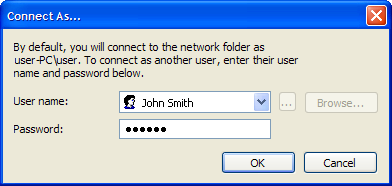
For authorization you can only use the password in the TeamWox system. Connection using password in Active Directory is impossible since the TeamWox system doesn't store it anywhere and it cannot be checked. |
After that press the "OK" and "Finish" buttons. Once you have done it, the network drive will appear in the window of "My computer"; it will contain all the folders and files, to which you have the access.
To work with WebDav under Microsoft Windows XP it is necessary to have the "Service Pack 3" updates package installed. |
Connection Using SSL Certificate
If the authentication by user certificates is used in the TeamWox system then the connection to the documents storage can be performed in the same way.
In this case the stage of connecting under different user name is skipped. Instead of it at the next step you are asked to choose a certificate for authorization:
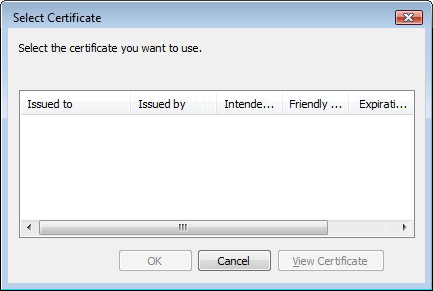
As soon as you select the certificate, you will be connected to the storage of documents.
Connection in the Macintosh Operating System (Mac OS)
You should execute the "Go -> Connect to Server" command in the "Finder".
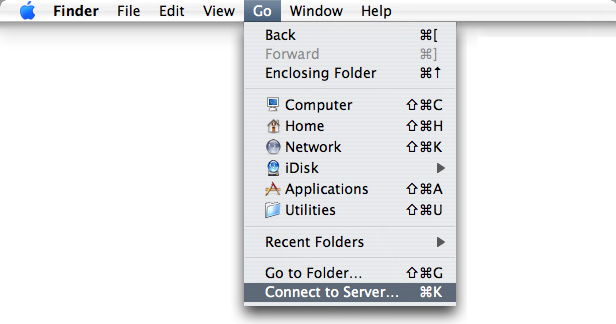
In the appeared window you should specify the address of your TeamWox server/webdav, for example: "https://yourdomain.teamwox.net/webdav".
It is obligatory to specify "https" in the address because the working is performed only through the secure protocol. |
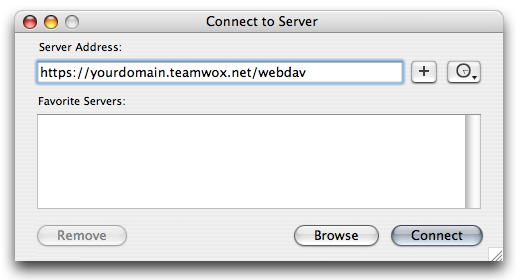
Then you should press the "Connect" button. The next step is to specify the login and password that you use to enter the TeamWox system in the appeared window.
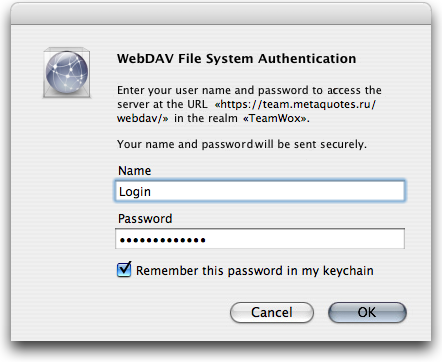
Then you should press the "OK" button. Once you do it the window that contains all the folders and files to which you have the access will appear.
If you get the "Cannot complete operation because of unexpected error (Error -50)" while trying to connect to the folder, try to take the following steps:
|
Connection in *nix Systems
An important peculiarity of connection through WebDAV in UNIX-based operating systems is specifying the "davs://" protocol instead of "https://". For example, "davs://yourdomain.teamwox.net/webdav".
Troubleshooting
When you connect to the TeamWox system using WebDAV from a computer running Windows XP SP2 (or higher), Windows Vista or Windows Server 2003 SP1, the following problems may appear:
- If you connect using the "net use" command, your are prompted to type your user name and password. After you type them, the following error message appears: "System error 5 has occurred. Access is denied."
- If you connect using Explorer View, your are prompted to type your user name and password for several times. If you click Cancel, the storage of the "Documents" module is displayed.
To solve these problems, take the following steps:
- Run the registry editor using the "regedit" command in the command line.
- Open thread HKEY_LOCAL_MACHINE\SYSTEM\CurrentControlSet\Services\WebClient\Parameters
- Delete the BasicAuthLevel parameter.
- Save changes and reboot your computer.
← Reports
Permissions →
|