
- Welcome
- Home
- Tasks
- Documents
- Service Desk
- Chat
- Organizations
- Reports
- Add/Edit
- Autobinding
- Delete/Restore
- Export of Organizations
- Filters
- Import of Organizations
- List
- Module Settings
- Permissions
- Settings
- View
- Organizations Widget
- Contacts
- Board
- Team
- Products
- Accounting
- E-Bank
- Search
- Calendar
- Telephony
- Administration
- Projects
Settings
In order to start setting up the "Organizations" module, one should press the " Settings" button. The settings window contains two tabs:
Service Level (SLA)
SLA - Service Level Agreement between the organization that provides an IT service and the user. The "Organizations" module provides the possibility of specifying the time limits for maintaining the requests of clients. When creating a request in the "Service Desk" module and binding it to an organization, the time limit for it will be automatically filled on the basis of the date of creation and the execution terms specified for the organization.
Before assigning a certain level of service to an organization it is necessary to create it:
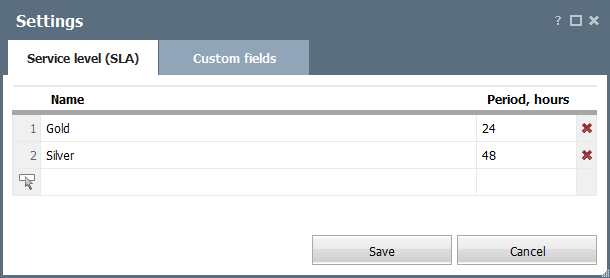
Click on an empty row and specify the category name and the time limit (in hours) for execution of requests. To delete a category, one should press the  located at the row end.
Once setting up is finished you should press the "Save" button. All the created levels of service will be available to choose in the "Service level" field while editing an organization.
Custom Fields
Custom fields for specifying information about organizations can be added at this tab.
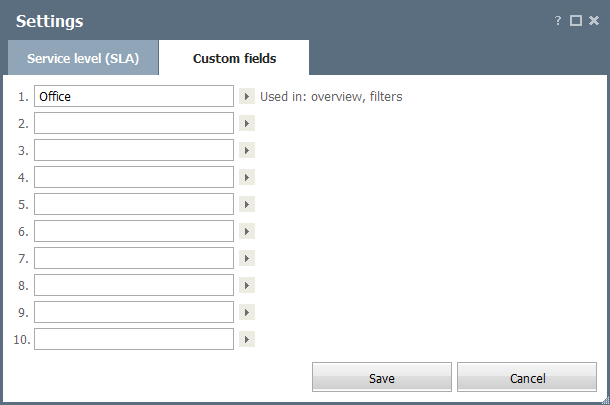
To add a custom field, specify its name in one of the rows of this window. Then, using the  button, choose the elements of the interface of the Organizations module, where the custom field should be displayed.
- Overview — display the custom field in "Main" section of organizations.
- Filter rules — use the custom field when creating rules for filters.
- List — display the field in the list of organization.
- Sorting — enable sorting the list of organizations by this field.
- Fast search — use the custom field for the quick search.
- Auto completing — if this option is enabled then the custom field will be shown in the "Overview" tab while viewing an organization.
In order to add a custom field, one should set its name in one of the lines of this window. Each custom field has two settings:
- Auto complete — if this option is enabled the values typed in the given field will be memorized by the system. At further editing of that field a list containing the previously typed values will be shown.
- Preview — if this option is enabled then the custom field will be shown in the "Overview" tab while viewing an organization.
All the custom fields are added to the "Main" box of organization details.
All the custom fields can be used for creation of filters. |