
- Welcome
- Home
- Tasks
- Documents
- Service Desk
- Chat
- Organizations
- Reports
- Add/Edit
- Autobinding
- Delete/Restore
- Export of Organizations
- Filters
- Import of Organizations
- List
- Module Settings
- Permissions
- Settings
- View
- Organizations Widget
- Contacts
- Board
- Team
- Products
- Accounting
- E-Bank
- Search
- Calendar
- Telephony
- Administration
- Projects
Filters
The "Organizations" tab contains filters located on the left side of the window.
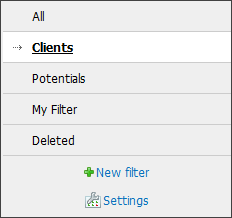
As it was mentioned in the "Interface description -> Working with filters" section user can create his or her own filters in the "Organizations" module.
If there are no filters created by the user, the system creates the "Clients" and the "Potentials" filters automatically. These filters show the organizations with the corresponding status assigned to them when adding or editing organizations. If necessary, these filters can be changed by clicking  on the filter view page.
Among the filters, there are always "All" and "Deleted". The filter "All" shows all the organizations (except the deleted ones) that were registered in TeamWox. The "Deleted" filter is only visible to users that are permitted to administer the module.
Creating/Editing Filters
To create a filter click . To edit a filter click . This opens a window for creating/editing a filter.
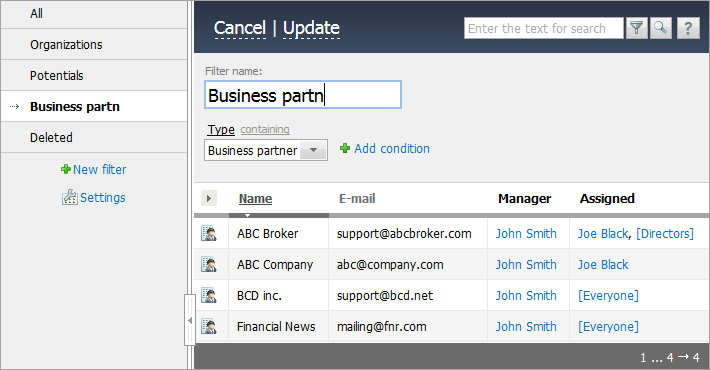
The default name of a newly created filter is "New Filter". You can change the name in the Filter Name field.
Below are the filter rules, which include three components:
- Field, based on which organizations will be selected. By default the field "name" is used when you create a filter.
Any parameter of the organization is used as the field - Condition used to define selection rules. By default "contains" is used.
Possible options, depending on the selected field: Empty, Not Empty, Equal to, Not Equal to, Begins with, Contains.
For fields of type "date" you can use conditions More than/Less than N days, will come within N days and will come not earlier than N days. Selection based on this condition is updated daily, staying up to date. - Value, relative to which conditions apply.
Additional rules are added using . To delete a filter click . The list of organizations is filtered automatically when you add rules.
To save the filter, click the "Save" button. To exit the creation/editing mode, click "Cancel".
Let us review an example. You want to create a filter that displays all the organization with the name starting with "ABC".
To do this, create a new filter. In the "Filter Name" field specify the name of the filter. Specify the "name" as the field of selection. Specify the filter condition as "starting from". In the value input field enter "ABC". All the required organizations automatically appear on the list.
Deleting Filters
To delete a filter, move your mouse over it in the list and click  .
.