
- Welcome
- Home
- Tasks
- Documents
- Service Desk
- Public Component
- Creating/Changing Groups
- Creating a Request
- Assigned
- Comments
- Deleting Groups
- Filters
- Integration
- List of Requests
- Monitoring
- Permissions
- Reports
- Status of Requests
- View Requests
- Widgets
- Chat
- Organizations
- Contacts
- Board
- Team
- Products
- Accounting
- E-Bank
- Search
- Calendar
- Telephony
- Administration
- Projects
View Requests
In order to open an request, one should click on it in the list.
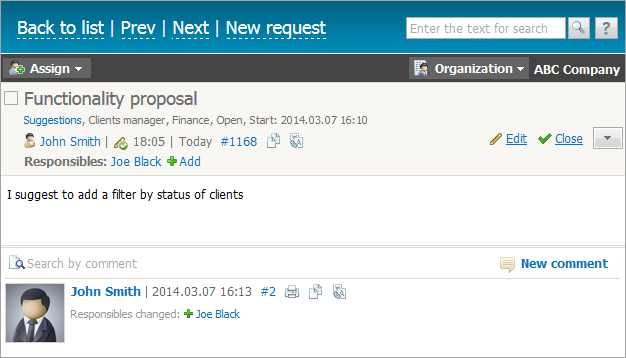
The window of request viewing can be divided into several parts:
Upper Toolbar
The upper part contains several buttons:
- To list — return to the viewing of the list of requests.
- New request — start creating a new incident.
 — open the list of users/groups to assign the request to.
 — pressing on this button opens the list of organizations added to the corresponding module of the system. Binding of a request enables you to view it on the corresponding tab of the organization. Statistics on organizations that submit their requests are shown in reports.
When the assigned users or binding to organization are changed, the corresponding comment about the changes will be automatically added to the request.
The possibility of assigning request can be disabled by a system administrator. |
Request Title
The request title contains its title, group, category and product, to which the request belongs, as well as its current status and the start date. If the title of the request is red colored, it means that it is of higher priority. Below there is information about the user, who has created the request, and the date of its creation/modification.
Requests linked to a project are marked with the icon  and a link to the project. The link text is the same as the project name.
Actions with a Request
The following actions are available for working with a request:
 Add — quick adding of employees responsible for the request.
 — move to request text editing.
 — move the request to the closed state.
 Mark out with color — mark a request with a different color.
 Copy request content to clipboard — copy the selected request to clipboard.
 Translate — translate the text of a request using Google Translate
If you are the author of the request or have full view permissions for the service group, then a slick on  will open a list of additional commands:
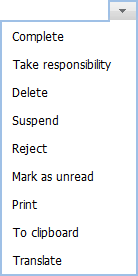
- Complete — complete the request.
- Take responsibility — take the request under your responsibility.
- Delete — delete the request.
- Suspend — move the request to the Suspended category.
- Reject — move the request to the Rejected category.
- Mark as unread — to not forget about a request click "Mark as unread", and it will be displayed as a new one — with a bold title in the list.
- Print — open the request and comments to it in a separate browser tab in a print preview mode. Page is printed by standard browser options.
- To clipboard — copy the selected request to the clipboard and then paste its content in a task, another email, service desk request, comment, etc.
- Translate — translate the request using the Google Translate service integrated in TeamWox.
You can modify only the text of a request and only for half an hour since its creation. Request can be deleted also only during this period. |
ID
The number specified after the # symbol is the request identifier that is also a permanent link to it. You can copy the link using the corresponding command of the context menu and then insert it to other messages. Also you can search requests by these identifiers. To do it, type the identifier with the "#" symbols before it in the search line. Search by identifiers can be performed only within the "Service Desk" module.
Request Body
Under the request title, you can find the body of the request where its description is given. If you are the author of the request or have permissions for administration and full viewing of the group, you can change its text using the "Edit" button that appears when pointing the mouse cursor over the request body.
The author can modify the text of a request only during the first 15 minutes after creating it. |
Comments
All operations with requests are performed via comments that can be added in the lower part of the window.
No matter how long the list of comments or the request text is, the page header always contains the following details:
|
