
Dialog
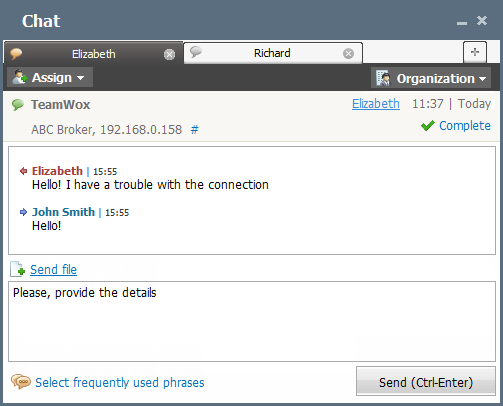
In order to join a dialog, you should enter it by clicking the necessary one in the list. Then you should press the "Join the chat" button located at the bottom part of the appeared window. You can join only the dialogs that are active at the moment. If you choose a closed or an unprocessed dialog, you get to the page of viewing it. The dialog window appears as follows:
The number of your company's employees that can simultaneously join a dialog is not limited. |
The upper part contains the tabs of dialogs with the clients, their names being displayed there. You can go to the corresponding dialog by pressing on a tab.
Dialog Details
The upper part of the tab contains the following information - the name of the client, the date of their call, the IP address the request has come from and the company name. If you press on the client's name, the window of writing the mail to this client will be opened. The email address specified by the client in the form before starting the dialog is automatically entered in the "To" field.
Permanent Link
The "#" sign is displayed to the right of the IP address. It is a permanent link to this dialog. This link can be copied via the context menu and inserted to your messages.
Modifying Dialog Title
There is a possibility to modify the title of a dialog. To do it, you should point the cursor of the mouse over the topic area and press with the left button of your mouse on the bright rectangle that appears:

Then you should specify the new topic and press with the left button anywhere outside the editing field.
Sending Files
Using the button  Send file one can send a file to its interlocutor. Click this button and select a file.
The possibility of sending files can be disabled in the service group settings. The size of files transmitted is limited by the general settings of the system.
Inviting Employees
You can invite a necessary employee of your company to join the dialog by pressing the  button. The list of employees opens as soon as you press this button. The instructions of how to work with that list are given in the "List of Assigned" section. The assigned user is notified about the dialog with a special icon,
  , blinking in the top right corner of the window.
Creating New Dialog
If during a dialog you need to consult with another employee without inviting them to the current chat, you should create a new one by pressing the  button. As soon as you choose employees from the list that appears and press the "Select" button the personal dialog with these employees will be created in the next tab.
Binding to Organization
You can assign the dialog to one of the organizations added in the corresponding module by pressing the  button. The list of organizations opens as soon as you press this button. The instructions of how to work with that list are also given at the "List Manipulations" section. Once the dialog is assigned to an organization, its name appears in the "Author" field in the list of dialogs. If you press on it, you are passed to the page of viewing the information about that company in the "Organizations" module.
The automatic binding of dialogs to organizations by e-mail address functions in the TeamWox system. |
Closing Dialog
You can end this dialog by pressing the "Complete" button. Once that button is pressed the window of reply writing disappears and the upper field of the dialog window becomes gray. On the client side the reply window also disappears and the entry that the employee has closed the chat appears in the history of the dialog.
Dialog Window
The dialog history window is located below. The client's name is displayed in red, yours is colored blue.
The lower block is intended for writing messages. You should type the text and press the "Send" button. You can also use "CTRL+Enter" key combination to send messages.
The  Select frequently used phrases button is intended for inserting previously prepared frequently used phrases into a dialog.