
- Welcome
- TeamWox Communicator
- Diagrams
- Editor
- Templates
- User Details
- Getting Started
- Browser Settings
- Calendar
- Calls
- Charts
- Exit
- File Viewers
- Filters
- Notifications
- Certificate Installation
- Interface
- List of Assigned
- Mind Map
- Permissions
- Search
- Status
- Google Translate
- Windows
- Home
- Tasks
- Documents
- Service Desk
- Chat
- Organizations
- Contacts
- Board
- Team
- Products
- Accounting
- E-Bank
- Search
- Calendar
- Telephony
- Administration
- Projects
Calendar
Interactive calendar shown in the screenshot below is used in various modules of TeamWox. For example, for timing of task performance, events, for specifying birthdays, etc. You can open the calendar window by pressing the  button with your mouse. This window contains a number of navigation buttons:
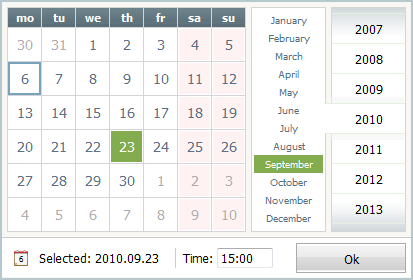
- The main part of the window is occupied by the area of week days and dates. In order to specify a day you should click with the left mouse button on the necessary cell. The cell with the current date is blue-bordered and the selected one is colored green.
- The middle box is intended for choosing the month. The selected month is also colored green.
- The last box is intended for choosing the year. Using the mouse wheel or by clicking the upper and lower parts of the box you can scroll years back and forward. Also you can scroll years by holding the list with the left mouse button and moving it up and down.
The chosen date is also displayed in the "Selected" field in the YYYY.MM.DD format. In the "Time" field you can manually (using keyboard) indicate the precise time in the HH.MM format.
The button  , where the current date is indicated, is present in the lower left part of the calendar. If you press it, the current date will be automatically chosen.
In order to save the selected date you should press the "OK" button located in the lower right part of the calendar. To cancel the setting of date and close the calendar window you should press the button.
In the user profile you can switch to using the Iranian calendar "Jalali". |
← Status
Translation →
|