
- Welcome
- TeamWox Communicator
- Diagrams
- Editor
- Templates
- User Details
- Getting Started
- Browser Settings
- Calendar
- Calls
- Charts
- Exit
- File Viewers
- Filters
- Notifications
- Certificate Installation
- Interface
- List of Assigned
- Mind Map
- Permissions
- Search
- Status
- Google Translate
- Windows
- Home
- Tasks
- Documents
- Service Desk
- Chat
- Organizations
- Contacts
- Board
- Team
- Products
- Accounting
- E-Bank
- Search
- Calendar
- Telephony
- Administration
- Projects
Chats
The Chats tab is designed to manage dialogs with other users. It shows a list of dialogs for the selected day:
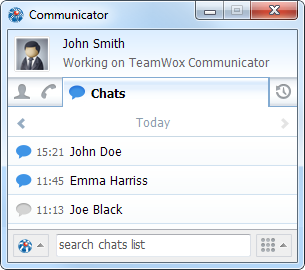
The list shows the name of the person who has created the dialog, as well as the time when the chat was created.
|
Depending on the type, the dialogs have different icons:
 — open internal dialog.
 — closed internal dialog.
 — unprocessed public dialog.
 — open public dialog.
 — closed public dialog.
Creating a Dialog
To create a dialog with your colleague, choose the  Chat command in his or her context menu. Also, the dialog can be created from the Chat module of TeamWox.
Selecting the Chat Date
In the list of chats, the dialogs are shown only for the date selected at the top of the tab. To switch to the previous and next day, use buttons  and
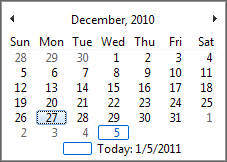
and  . You can also choose the day by a left-click on the currently selected date. This will open a special calendar:
Viewing a Dialog and Communication
To view a dialog, click on the user's name in the list of chats.
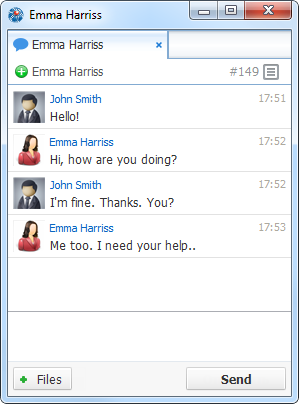
The tabs of open dialogs are shown in the upper part of the chat viewing window. To close any of the dialogs click  .
.
To the right of the chat identifier (digits after the # sign, which is also a permanent link to this chat) there is the button  for calling the chat menu. The menu contains the following commands:
 Complete — complete the dialog and close the window;
 Hide — hide the chat window;
 Conference with participants — create a conference call with all participants of the chat;
- Copy link address — copy the chat permanent link to the clipboard.
 Open in browser — open the chat in the "Chat" in the browser.
Below is the history of messages sent. To write a new message, enter a text in the box at the bottom of the window, and click Send.
Sending Files
There are a few ways to share files:
- Using the
 button. A click on it will open the Explorer window where you can select a file.
 - By Drag'n'Drop from the Explorer to the chat window.
- By pasting the file from the clipboard using the console menu or the Ctrl+V keyboard shortcut.
To send the selected file click "Send". Click "Cancel" to stop file transmission.
Images can be pasted in the chat window directly from the clipboard, no need to save them on information media. To send form the clipboard, use the console menu in the chat dialog or the Ctrl+V keyboard shortcut.
A thumbnail appears when a file is sent. A click on it opens the image in the default image viewer.
The size of the file sent is limited by the general system settings.
Inviting to a Dialog
You can invite as many colleagues as you want to join a dialog. To do it, click " Invite" in the upper part of the tab. The list of all colleagues appears:
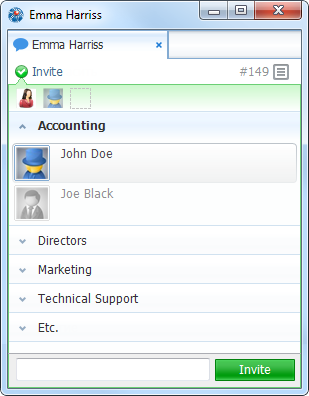
To invite an employee, click them with the left mouse button. Once you do it, their icon will be displayed in the row of participants of the dialog in the upper part of the tab. To disconnect an employee from the dialog, click their icon in that row.
To invite a whole department, click the " Add group" button that appears when putting the mouse cursor over its name.
To finish inviting colleagues, click " Invite" and you will return to the dialog view.
Public Dialogs
When working with public dialogs of the "Chat" module using the TeamWox Communicator, dialog tabs may display some additional information: the subject of a dialog, the company name of a person that requested a dialog, e-mail address, etc.
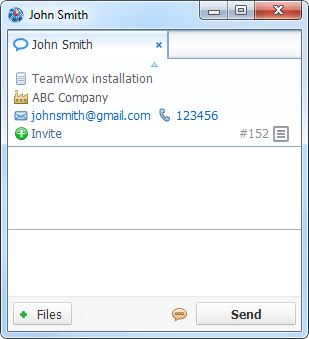
To change the subject of a dialog, click on it with the left mouse button.
← USB Phones
Events →
|